
Viral Academy
Welcome,
NAVIGATION
Module
5
.
Lesson
3
How to Remove Background Audio From Clips
When editing faceless content, one of the most common problems is footage that comes with unwanted background noise.
Ultimate Vocal Remover (UVR) is a free tool that uses AI to separate audio, letting you isolate or remove either the voice or background cleanly.
What You'll Need
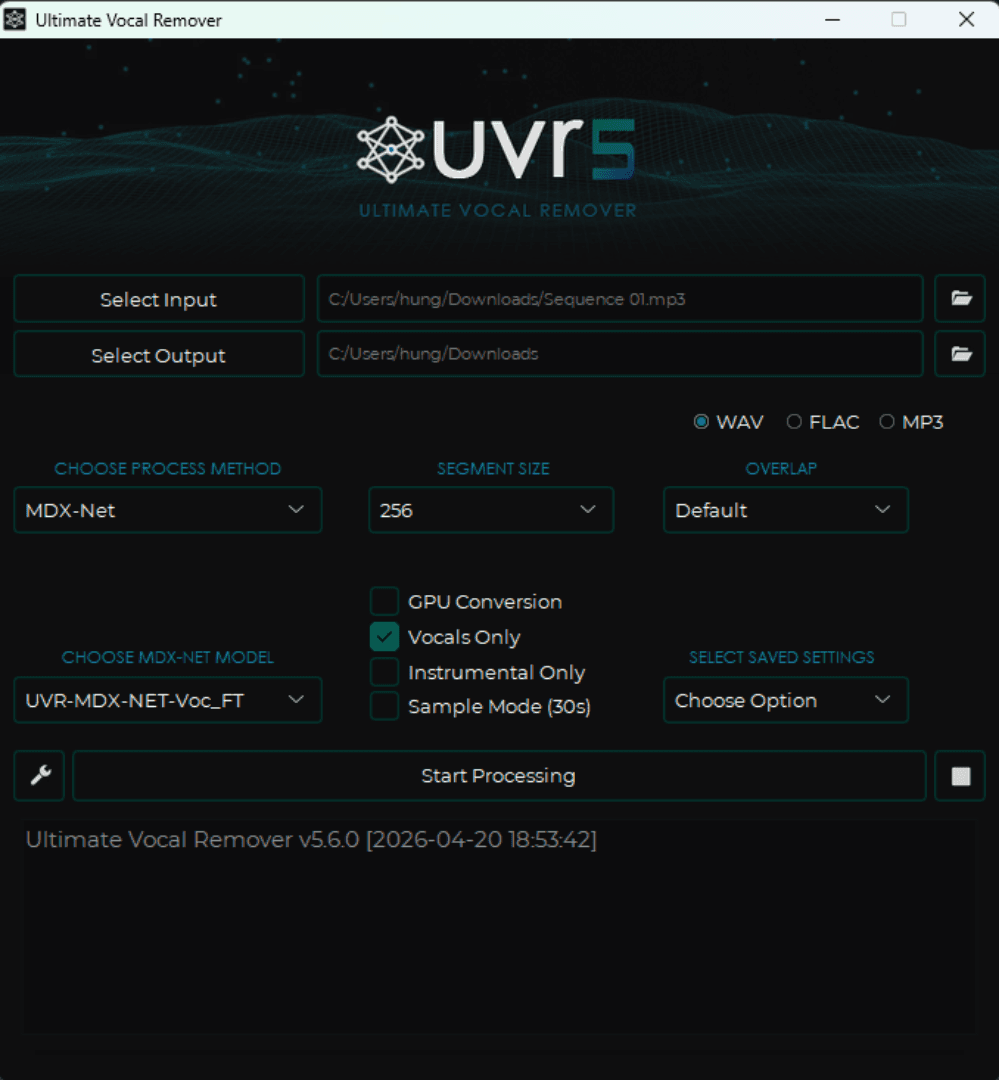
Ultimate Vocal Remover 5 (free download at ultimatevocalremover.com)
The audio or video file you want to clean
—
Step 1. Open Ultimate Vocal Remover
Launch UVR and drag your clip file into the input section.
Step 2. Set your output
Choose where you want the output files saved. And select whether you want the vocals or background audio of your clip.

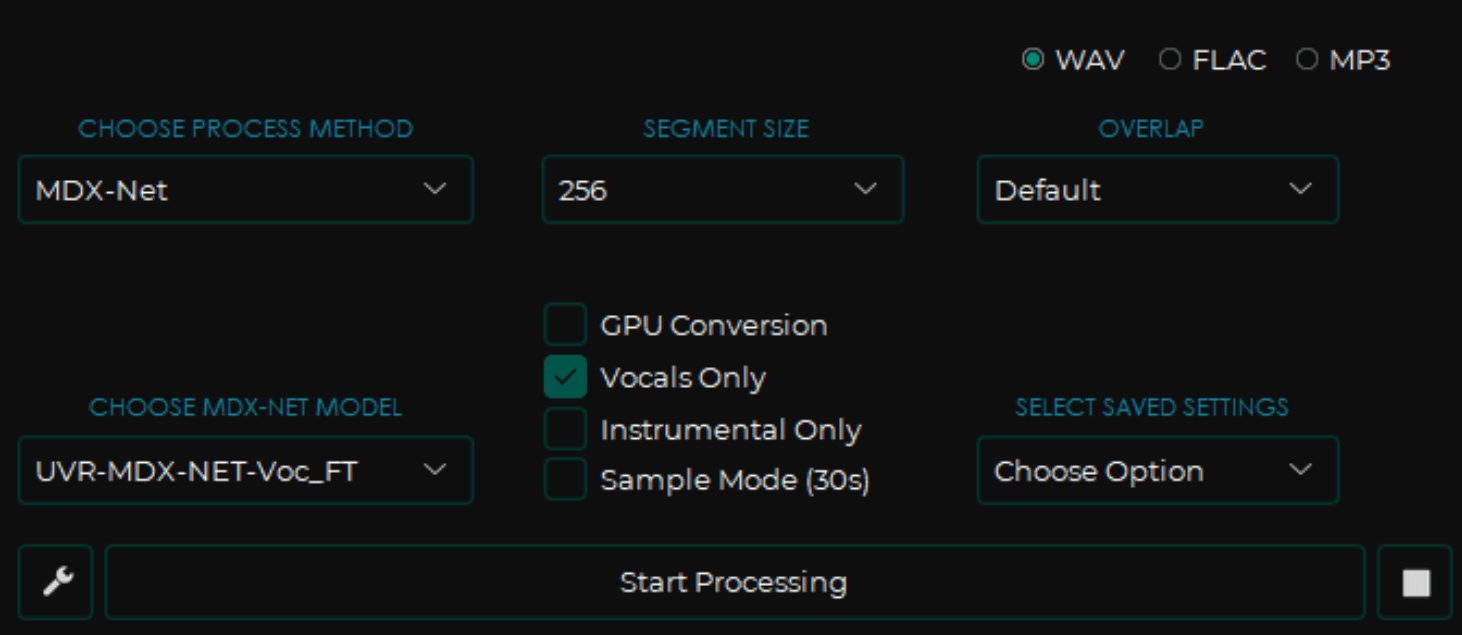
Step 3. Choose your model
For removing background music or ambient noise, use the MDX-Net model. (I recommend using the UVR-MDX-NET-Voc_FT model for the highest quality but if you notice that it takes a long time to process then you can use the first option shown in the image)
Step 4. Process
Click Start Processing. Depending on your file length and computer speed this takes 30 seconds to a few minutes. If you're working with a video file in Premiere Pro, export just the audio as a WAV or MP3 file.
Step 5. Import back into Premiere
Take the clean audio stem and drag it back into your Premiere Pro timeline, replacing the original audio track on your clip.
Note: Make sure to remove background audio before cutting your clip, replacing individual audio segments across multiple cuts is tedious and time consuming.